
Most sales teams end up with a spreadsheet problem eventually. Someone builds a lead tracker in a shared sheet, someone else adds a column, and within a quarter, it's a mess of half-filled rows that nobody trusts. Table Notes, an app in the Business category from the developer listed as Solution Developers, takes a different route: it treats the spreadsheet as the output and a form as the input.
That distinction matters more than it sounds. Enter data through a structured form on a phone, and the underlying table stays clean enough that whatever analysis you run on it later produces results you can trust.
What Table Notes Builds for You
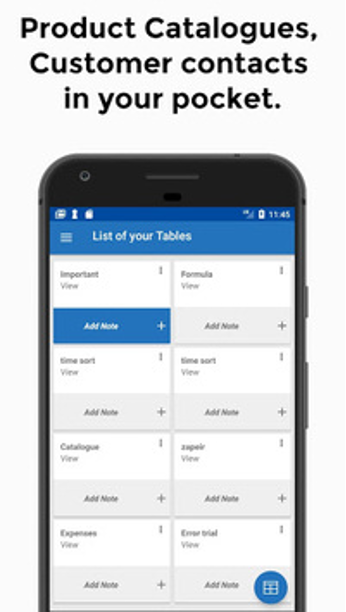
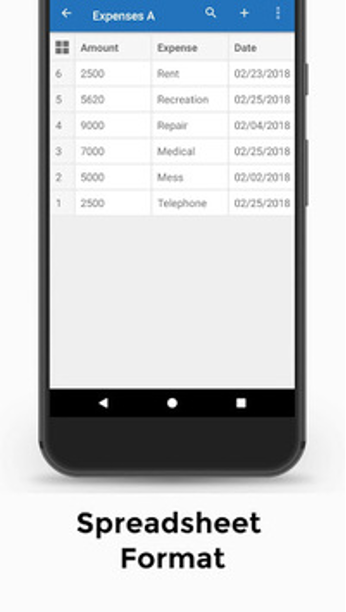
Table Notes lets you build a custom database on Android. You define the fields, build forms around them, and the records land in a spreadsheet view you can sort and analyze. The store listing points to expense and accounts tracking, product catalogues, time schedules, field surveys, technical datasheets, customer enrollment, and audit and inspection data.
Read that list through a sales and marketing lens, and the fit is obvious. Customer enrollment is lead capture. Product catalogues are what your reps pull up in front of a buyer. Field surveys are territory research. Audit and inspection data is the compliance paperwork nobody wants to do twice.
Offline support carries the most practical weight of anything on that list. Records, photos, and files created without a signal sync to the Table Notes Cloud once the device reconnects, which matters to anyone who has tried to log a site visit from a basement warehouse or a trade show hall with saturated Wi-Fi.
Real-time collaboration with multi-level access permissions is listed as coming soon. Treat it as a roadmap item, not something to plan today's workflow around.
How the Bigger Screen Changes It
Running Table Notes through an emulator on Windows shifts the app's whole feel. On a phone, the spreadsheet view is a peephole: you scroll horizontally to find a column, lose your place, and scroll back. On a 24-inch monitor, more of the grid fits at once, and the app stops feeling like a data entry tool and starts feeling like a review tool.
The form builder benefits most. Defining fields, setting types, and arranging the order of questions are fiddly tasks on a touchscreen and unremarkable ones with a mouse. Click a field, drag it, and move on.
Text entry is the other obvious win. Populate a product catalogue with fifty items, each needing a description, a price, and a SKU, and typing on a physical keyboard isn't a small improvement. It's the difference between finishing the task and abandoning it.
The rough edges are the ones you'd expect from an Android app on a desktop: some tap targets sit at phone scale, leaving dead space around buttons, and scrolling inside the spreadsheet can feel slightly jumpy with a mouse wheel compared to a finger swipe. Nothing breaks. The interface just never forgets what it was designed for.
When the Phone Stops Being Enough
The usual pattern goes like this. A sales manager sets up a table for the team, reps fill it in on their phones through the week, and Friday afternoon arrives, when somebody has to look at the whole thing.
That's the moment the phone stops being adequate. You want to see all the columns, compare this week's enrollment records against last week's, and attach a datasheet from your Downloads folder without emailing it to yourself first. That Friday afternoon review is usually when someone decides to download Table Notes for PC, trading the five-inch screen for a monitor big enough to hold the whole table.
The same logic applies at the other end of the cycle, during setup. Building the table structure is a desktop job. Filling it in is a phone job.
Getting BlueStacks Ready for It
BlueStacks handles Table Notes without any special treatment, so there's no point rehearsing the generic emulator routine here. Two things specific to how this app works do deserve attention.
The first is file access. Photos and file attachments are frequently the whole point of a record: a product shot, a signed form, or a scanned datasheet. If your source files live on the Windows side, set up the emulator's shared folder before you start building records, or you'll be hunting for a way to move a PDF across midway through data entry.
The second is sync timing. Because the app is built around offline-first operation with later cloud sync, running the same account on a phone and a desktop instance at once can produce confusing results if both have unsynced changes. The safe habit is straightforward:
- Let the phone finish syncing before you open the desktop instance.
- Do structural work—new tables, new forms, and field changes—in one place only.
- Make bulk edits on the desktop and quick captures on the phone.
- Check that photo and file attachments have uploaded before closing the emulator.
- Keep one device as the authority during any large import.
Skip that, and you end up with duplicate records and a column that exists on one device but not the other.
Where This Leaves a Sales Team
Table Notes sits between a notes app and a CRM. It doesn't do pipeline automation, email sequences, or deal scoring. What it does is let a non-technical person define a structured data collection process in an afternoon and push it out to a team working in the field.
For a small sales operation, that gap is exactly where a lot of work currently lives—in messy shared spreadsheets and photos buried in WhatsApp threads. Replacing that with forms that enforce field types is a real improvement in data quality, and data quality is what makes later analysis worth doing.
Marketing teams running events get a similar benefit. Customer enrollment at a booth is a form problem, and offline support means a bad conference Wi-Fi connection doesn't cost you the leads.
Collaboration features are still pending, so today, this works best as a structured capture tool with cloud backup rather than a shared live workspace.
The clearest split is by role: one person shapes the database, and everyone else feeds it from wherever they're standing. Build the forms with a keyboard and mouse, review the spreadsheet on a monitor, and let the phones handle the capture they're built for.